Write Apps Script faster with the myFunction extension
Install the myFunction Chrome extension, review what it can access, and use its diagnostics, navigation, and formatting on a small Sheets project.
Install myFunction, explain its browser permissions, and use diagnostics, hovers, navigation, rename, formatting, the command palette, and the outline to fix a broken request counter before running it.
The Apps Script editor tells you about many mistakes only when a function runs and fails. myFunction is a Chrome extension that checks your code while you type, inside the same editor. In this chapter you install it, review what it can access, and use it to repair a small request counter that has three bugs. Each feature in the tour connects to a mistake an earlier chapter warned about.
The extension changes the editing experience only. It does not run your script, change how Apps Script executes it, or add OAuth scopes to your project. Everything you learned about authorization, execution identity, and quotas still applies.
Install the extension and review its access
Install myFunction from its Chrome Web Store listing. The store lists it as Autocomplete & Error Checker for Google Apps Script. The extension requires Chrome 116 or later.
Open the store listing and click Add to Chrome.
Read the permission prompt Chrome shows, then confirm only if you accept it.
Reload any Apps Script editor tab that was already open, so the extension can attach to it.
Before you install any extension, check what it asks for. myFunction's manifest requests these Chrome permissions:
| Permission | What myFunction uses it for |
|---|---|
alarms | Schedules background work, such as sending batched feature-use counts, without keeping the service worker running. |
identity | Starts Google sign-in when you choose Sign in with Google. |
offscreen | Runs the language service in an offscreen extension document. |
sidePanel | Shows the Problems panel and outline in Chrome's side panel. |
storage | Keeps the session, the cached Apps Script declaration library, diagnostic allowance state, and local usage counters. |
The Chrome permissions list describes each of these as access to the matching chrome.* API. The manifest also requests host access to two origins. Host access lets an extension run on, or send requests to, the listed sites:
https://script.google.com/*: the extension's content scripts run on Apps Script pages. They read the text of the files open in the editor so the language service can check them, and they add markers, hovers, and edits to the editor when you ask for them.https://api.myfunction.dev/*: myFunction's own service. The extension downloads the Apps Script declaration library from it and uses it for sign-in, diagnostic allowances, subscription status, aggregate usage counts, and error reports. The extension scrubs error reports of script IDs, email addresses, and tokens before sending them.
Signing in requests your Google account identifier, email address, and basic profile. It does not request the Apps Script API scope or any Gmail, Drive, or Calendar scope, according to the myFunction permissions page. The language service that checks your code runs in your browser. Fix with AI, a Pro feature, sends the selected code snippet to myFunction's service to generate a fix.
What works without an account
Completion, hovers, signature help, navigation, rename, formatting, refactors, inlay hints, quick open, and the outline do not require sign-in. Diagnostics, the squiggles and Problems panel entries described below, run in timed sessions:
Without an account you get a free preview session. The permissions page currently describes it as one 10-minute session.
Sign in with Google gives a monthly allowance of diagnostic sessions.
myFunction Pro removes the session limit and adds Fix with AI. The myFunction website lists the current price.
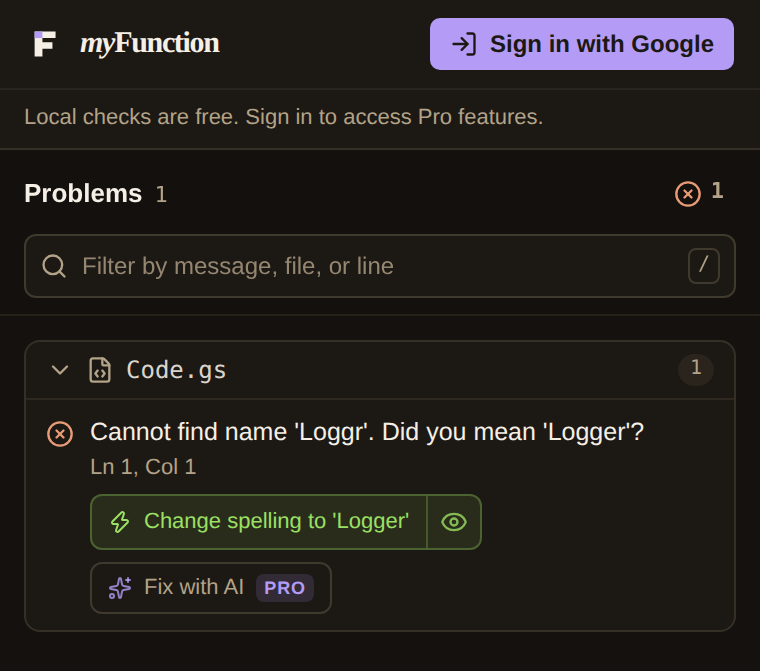
The Problems panel shows how many sessions remain, when the allowance resets, and Diagnostics paused. when no session is active. The exact allowance comes from myFunction's service and can change, so read the panel rather than relying on a number in this book.
Set up the sample project
Use a disposable spreadsheet so that nothing in the tour touches real data.
Create a blank Google Sheet and name a tab
Requests.Type
ID,Title, andStatusinA1:C1. Add two or three fictional rows below. Give at least one row the statusDone.Open Extensions > Apps Script. Replace
Code.gswith the file below.In Project Settings, enable Show "appsscript.json" manifest file in editor. Replace
appsscript.jsonwith the included manifest and save both files.
const REQUESTS_SHEET = 'Requests';
const STATUS_COLUMN = 3;

/**
 * Returns the bound spreadsheet's Requests sheet or stops with a clear error.
 *
 * @returns {SpreadsheetApp.Sheet}
 */
function getRequestsSheet_() {
  const sheet = SpreadsheetApp.getActiveSpreadsheet().getSheetByName(REQUESTS_SHEET);
  if (sheet === null) {
    throw new Error('Add a sheet tab named ' + REQUESTS_SHEET + ' before running this function.');
  }
  return sheet;
}

/**
 * Reads the request rows below the header. Returns an empty array when the
 * sheet has only a header row.
 *
 * @param {SpreadsheetApp.Sheet} sheet
 * @returns {unknown[][]}
 */
function readRequestRows_(sheet) {
  const lastRow = sheet.getLastRow();
  if (lastRow < 2) {
    return [];
  }
  return sheet.getRange(2, 1, lastRow - 1, STATUS_COLUMN).getValues();
}

/**
 * Logs the title of every request row.
 *
 * @returns {void}
 */
function logRequestTitles() {
  const rows = readRequestRows_(getRequestsSheet_());
  rows.forEach(function (row) {
    Logger.log(row[1]);
  });
}

/**
 * Logs how many requests are not Done.
 *
 * This function contains three mistakes. Open it in the Apps Script editor
 * with myFunction installed, then fix each one by reading the Problems panel.
 *
 * @returns {void}
 */
function countOpenRequests() {
  const sheet = SpreadsheetApp.getActiveSpreadsheet().getSheetByName(REQUESTS_SHEET);
  const lastRow = sheet.getLastRow();
  const rows = sheet.getRange(2, 1, lastRow - 1, '3').getValues();
  const open = rows.filter(function (row) {
    return row[STATUS_COLUMN - 1] !== 'Done';
  });
  Logger.log('Open requests: ' + open.lenght);
}
The manifest requests spreadsheets.currentonly, which permits access, including edits, to this spreadsheet. The code only reads cells and writes to the execution log. When you run a function, it executes as you, with your authorization, as described in the runtime chapter.
getRequestsSheet_ and readRequestRows_ are working helpers. logRequestTitles uses them correctly. countOpenRequests contains three mistakes. Do not run it yet.
Find mistakes with diagnostics
When the extension attaches, a small myFunction badge appears in the editor with counts of errors and warnings. Problem code gets a squiggly underline. Hover over an underline to read the message, or click the badge to open the side panel. You can also click the extension's toolbar icon, Open myFunction, to open the panel.
For this project the Problems panel lists four findings, all in countOpenRequests:
| Line | Severity | Message |
|---|---|---|
| 54 | Warning | 'sheet' is possibly 'null'. |
| 55 | Warning | 'sheet' is possibly 'null'. |
| 55 | Error | Argument of type 'string' is not assignable to parameter of type 'number'. |
| 59 | Error | Property 'lenght' does not exist on type 'unknown[][]'. Did you mean 'length'? |
These messages come from the book's checker, which uses the same language service as the extension. Your panel can show them in a different order.
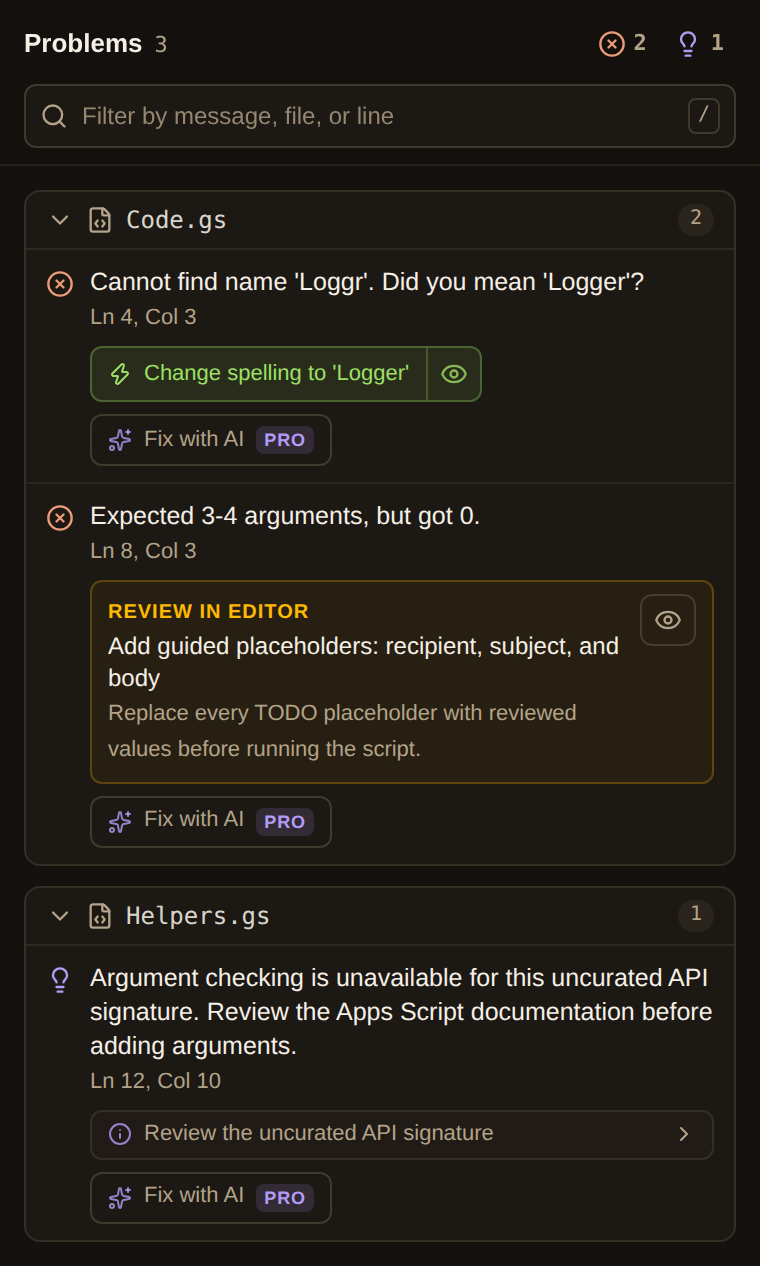
The screenshot shows a different project, but the layout is the same. Problems are grouped by file, each with its line and column. Click a problem to move the cursor to it. Type in Filter by message, file, or line to narrow a long list. A fix button, such as Change spelling to 'Logger', applies an edit; the eye button next to it previews the edit first. A REVIEW IN EDITOR card marks a fix that inserts placeholders you need to replace with your own values.
Fix the missing-sheet case
The runtime chapter showed what happens when a chained call assumes a value exists. getSheetByName returns null when no tab has that name. Calling getLastRow() on null stops the execution with a TypeError.
The warning 'sheet' is possibly 'null' is that same mistake found before a run. To fix it, replace the lookup with the helper that already handles the missing tab:
const sheet = getRequestsSheet_();Both null warnings disappear, because getRequestsSheet_ either returns a sheet or throws Add a sheet tab named Requests before running this function.
Fix the wrong argument type
getRange(2, 1, lastRow - 1, '3') passes the text '3' where numColumns expects a number. The diagnostic underlines '3'. Replace it with the constant the rest of the file uses:
const rows = sheet.getRange(2, 1, lastRow - 1, STATUS_COLUMN).getValues();Fix the misspelled property
The values chapter warned that reading a misspelled property gives undefined instead of an error. Here, open.lenght would log Open requests: undefined. The diagnostic suggests length. Put the cursor on lenght, open the quick-fix menu with the lightbulb or Ctrl+. (Cmd+. on macOS), and choose Change spelling to 'length'.
Check what diagnostics cannot see
The Problems panel is now empty for Code.gs. An empty panel means the code matches the Apps Script declarations. It does not show whether the function succeeds with your data, and one problem remains. If the Requests tab has only a header row, lastRow - 1 is 0, and getRange rejects a range with zero rows when the function runs. readRequestRows_ already guards against that case. Replace the lookup and the read with the helpers:
function countOpenRequests() {
  const rows = readRequestRows_(getRequestsSheet_());
  const open = rows.filter(function (row) {
    return row[STATUS_COLUMN - 1] !== 'Done';
  });
  Logger.log('Open requests: ' + open.length);
}
Save, select countOpenRequests, and click Run. Approve the authorization request only if you accept it for this test spreadsheet. The execution log shows the number of rows whose status is not Done. Diagnostics checked types; the run checked your data.
Read the docs while you type
Type SpreadsheetApp. on a new line inside a function. The completion list shows the service's methods with their signatures and descriptions. Keep typing to filter, then press Enter or Tab to insert a name. Inside the parentheses of a call, signature help shows the parameter you are filling.
Hover over getSheetByName in getRequestsSheet_. The hover shows the declaration, getSheetByName(name: string): SpreadsheetApp.Sheet | null, the method's description, and a See: link to the Apps Script reference page. The | null part is the reason for the warnings you fixed. Reading the return type in a hover before you chain another call prevents that whole class of bug.
Type /** above a function and press Enter to insert a JSDoc template. The helpers in the sample use JSDoc @param and @returns tags. The language service reads those tags, so when readRequestRows_ declares @param {SpreadsheetApp.Sheet} sheet, passing a possibly null value to it is reported too.
Go to definitions, including built-in declarations
Put the cursor on getRequestsSheet_ inside logRequestTitles and press F12, or right-click and choose Go to Definition. The cursor moves to the helper's declaration. If the definition is in another file of the project, myFunction opens that file.
Now try Go to Definition or Peek Definition on getValues. Built-in services have no source file in your project, so myFunction opens a read-only excerpt of the Apps Script declaration library instead. Peek Definition shows it inline below the current line, which is useful for checking a return type, such as unknown[][] for getValues(), without leaving your place.
The batching chapter explained that getValues() returns rows of columns. Peeking at the declaration confirms the two-dimensional shape before you index into it.
Rename a function and find its references
The functions chapter noted that every .gs file shares one global scope. Renaming a helper by search and replace can miss a call in another file, or change an unrelated name that happens to match.
Put the cursor on readRequestRows_ and press Shift+F12 to list its references. You see the declaration and the two calls, one in logRequestTitles and one in your fixed countOpenRequests.
Press F2 on the same name, type readRequestTable_, and press Enter. myFunction renames the declaration and every reference across the project's files. It refuses a rename that would not be a valid JavaScript name, and names that come from Apps Script, such as getValues, show Only names declared in this project can be renamed. If any file changes while the rename is computed, it asks you to try again instead of applying a partial edit.
A related diagnostic catches the opposite problem. If two files both declare function readRequestTable_(), myFunction warns that the function is also declared in the other file and that only one definition survives at runtime.
Format a file, a selection, or every save
Right-click in the editor and choose Format Document to apply consistent indentation and spacing to the whole file. Select a few lines first to format only the selection. Formatting uses the editor's tab size and spaces setting.
To format each time you save, right-click and choose myFunction: Toggle Format on Save. A message confirms Format on save on. When you press Ctrl+S (Cmd+S on macOS), myFunction formats the focused file and then lets the save continue. If formatting takes more than two seconds, the save continues without waiting. The setting is stored in this browser profile and is off until you turn it on.
Extract and inline code with refactors
Select the filter callback in countOpenRequests, from function (row) through its closing brace, then open the code action menu with the lightbulb or Ctrl+.. Besides quick fixes, the menu offers refactors such as extracting the selection to a function or constant, or inlining a value. You can also right-click and choose Refactor.... Each refactor rewrites code in the current project; it does not create files or add import and export statements, which Apps Script does not support.
Review the result before you save. A refactor keeps the behavior the language service can see, but you still choose a meaningful name for an extracted function.
The code action menu also offers performance fixes. Write a loop that calls sheet.getRange(row, 3).getValue() once per row, and myFunction warns that getValue() inside a loop reads one cell at a time. Read a rectangular range once with getValues() when the cells can be batched. This is the batching advice from the best-practices guide and the batching chapter, shown at the line that ignores it.
For one narrow loop shape, the menu also offers an automatic rewrite. When a counting loop reads range.getCell(row, 1).getValue() from a single-column range declared before the loop, the fix Read range once with getValues() before the loop inserts one getValues() call and replaces each cell read with an array lookup. The fix asks you to review the transformed loop before you apply it, because only you know whether batching is safe for that range. For other loops, such as the getRange(row, 3) example, rewrite the read yourself.
Use the command palette
Press Ctrl+Shift+P (Cmd+Shift+P on macOS) in the Apps Script editor to open the myFunction command palette. Type to search commands and the current problems together.
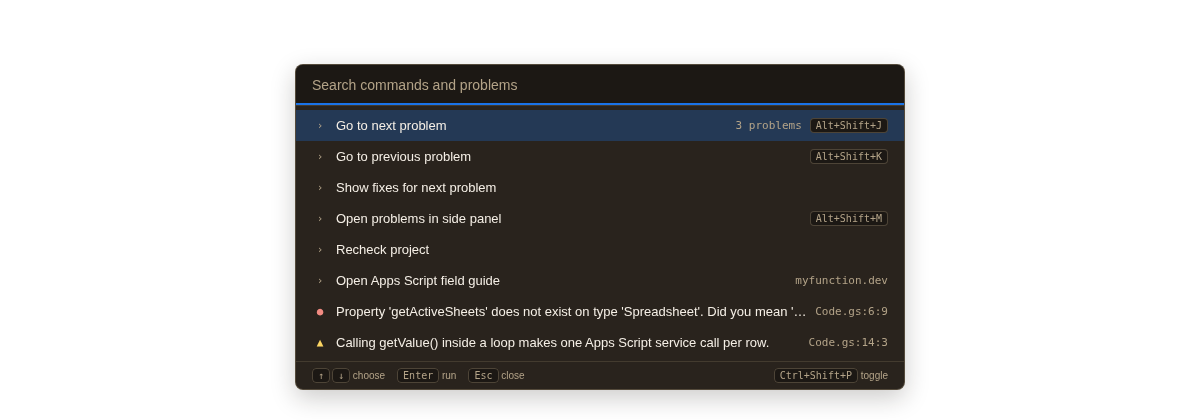
| Command | Shortcut | What it does |
|---|---|---|
| Go to next problem | Alt+Shift+J | Moves the cursor to the next problem. |
| Go to previous problem | Alt+Shift+K | Moves to the previous problem. |
| Show fixes for next problem | none | Moves to the next error or warning and opens its fixes. |
| Open problems in side panel | Alt+Shift+M | Opens the Problems panel. |
| Recheck project | none | Runs diagnostics again. |
| Open Apps Script field guide | none | Opens the myFunction field guide on myfunction.dev. |
On macOS, Alt is the Option key. Each problem appears as an entry with its file and position. Choose one to jump there.
The editor's own command list opens with F1. myFunction adds its settings there, such as myFunction: Toggle Format on Save and the inlay hint commands below.
Open files and symbols quickly
A project with several files soon has more names than you can remember. Press Ctrl+P (Cmd+P on macOS) to open the quick-open picker. Type part of a file name and press Enter to open it.
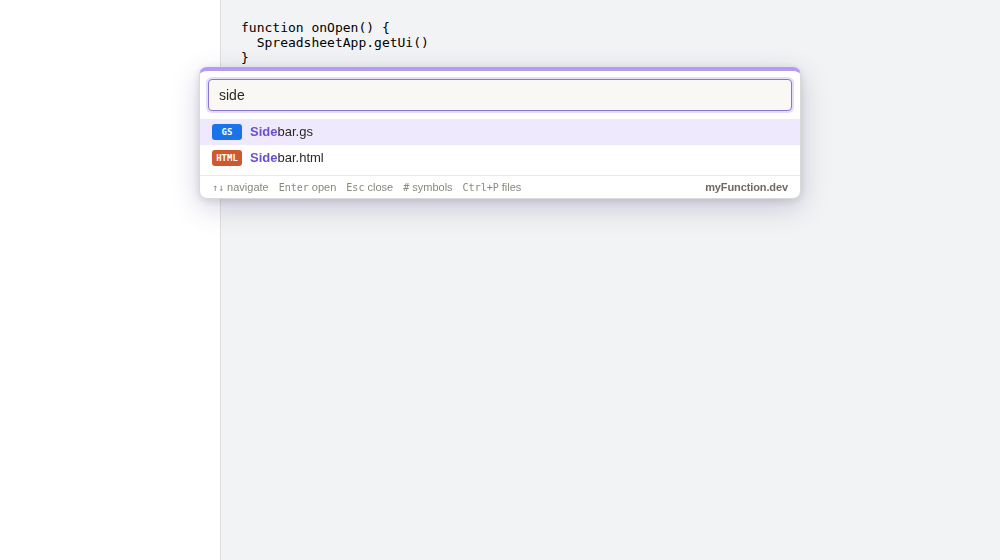
Type # first to search declarations across the whole project: functions, classes, and variables. Each result shows the file that declares it.
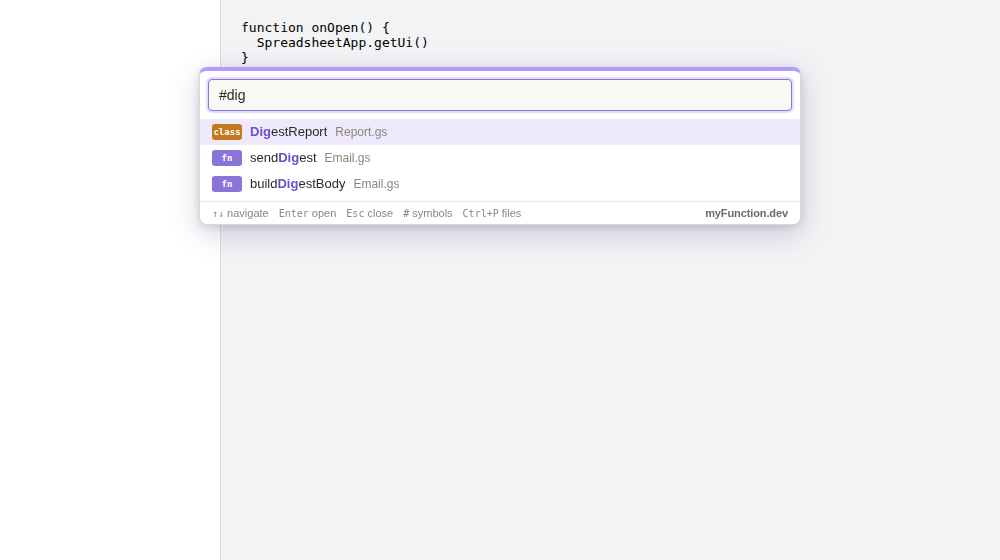
In the sample project, type #Request to see the constant REQUESTS_SHEET and the functions that mention requests. The picker finds the declaration even when you remember only part of the name.
Navigate a file with the outline
Below the Problems panel, the side panel shows an Outline of each file: top-level functions, classes, and global constants, plus the members of classes and of object literals used as namespaces. Click a row to move the cursor to that declaration. Type in Filter functions and globals to narrow the list.
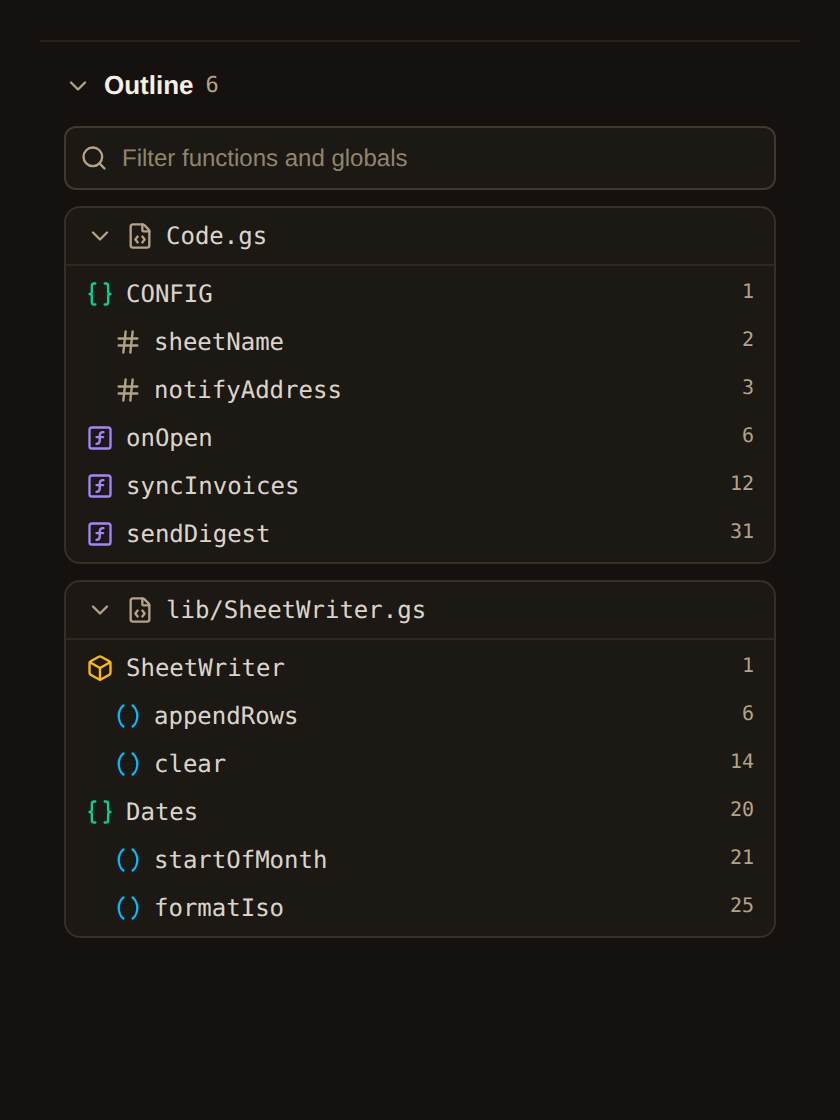
The outline reads the file's structure without type-checking it, so it stays available while the file still has errors. For the sample project it lists the two constants and the four functions in Code.gs.
Read calls with inlay hints
A call such as getRange(2, 1, lastRow - 1, STATUS_COLUMN) is hard to read because the arguments have no labels. myFunction shows parameter names as faint inline labels before literal arguments, such as numbers and strings. This is on by default.
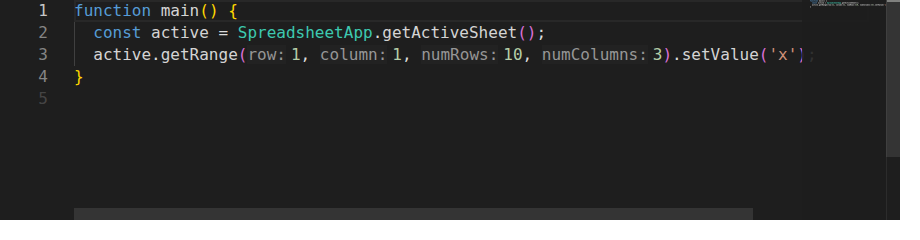
The labels make it easier to notice a swapped row and column, a mistake that passes type checking because both are numbers. To change the hints, press F1 and type inlay:
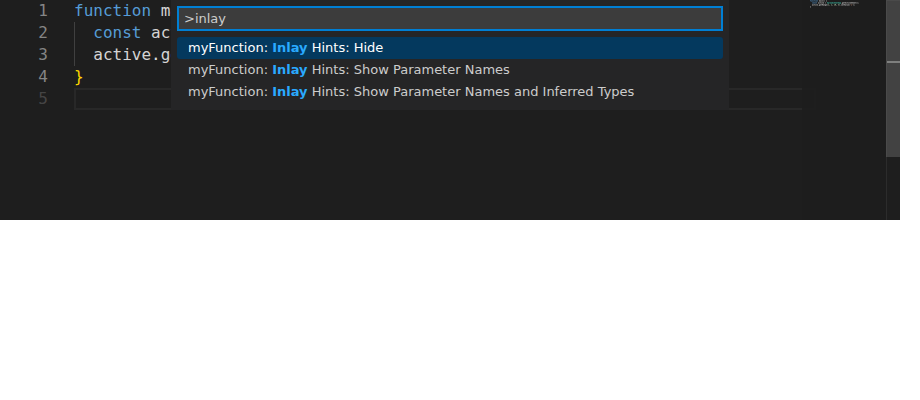
Show Parameter Names and Inferred Types also labels variables with their inferred types. It adds more text to the editor, so it is off by default. The choice is stored in this browser profile.
Exercise
Use the fixed sample project.
Add a second script file named
Report.gs. In it, writefunction countOpenRequests() {}. Read the warning that appears on both declarations, then delete the duplicate.In
Report.gs, write a function that loops from row 2 to the last row and callsgetRange(row, STATUS_COLUMN).getValue()on theRequestssheet for each row. Find the performance warning with Go to next problem. Rewrite the function to read the status column once withgetValues()and loop over the returned array, following the batching chapter's pattern. Confirm that the warning disappears.Use quick open with
#to jump toreadRequestRows_, rename it toreadRequestTable_, and confirm with Shift+F12 that every call was updated, including the one inReport.gs.Hover over
getLastRowand follow the Apps Script reference link. Compare the documented return value with the declaration you see in Peek Definition.Turn on myFunction: Toggle Format on Save, indent one line incorrectly, and press Ctrl+S. Then turn the setting off again if you do not want to keep it.
When you finish, every file should show no problems in the Problems panel, and running countOpenRequests should log the same count as before. If the count changed, inspect your edits before you keep them. Delete the disposable spreadsheet when you no longer need it. To remove the extension, open chrome://extensions and click Remove on its card.
Project files
Complete source files for this chapter’s examples.
Fix a request counter with editor diagnostics
Code.gs
Download fileconst REQUESTS_SHEET = 'Requests';
const STATUS_COLUMN = 3;
/**
* Returns the bound spreadsheet's Requests sheet or stops with a clear error.
*
* @returns {SpreadsheetApp.Sheet}
*/
function getRequestsSheet_() {
const sheet = SpreadsheetApp.getActiveSpreadsheet().getSheetByName(REQUESTS_SHEET);
if (sheet === null) {
throw new Error('Add a sheet tab named ' + REQUESTS_SHEET + ' before running this function.');
}
return sheet;
}
/**
* Reads the request rows below the header. Returns an empty array when the
* sheet has only a header row.
*
* @param {SpreadsheetApp.Sheet} sheet
* @returns {unknown[][]}
*/
function readRequestRows_(sheet) {
const lastRow = sheet.getLastRow();
if (lastRow < 2) {
return [];
}
return sheet.getRange(2, 1, lastRow - 1, STATUS_COLUMN).getValues();
}
/**
* Logs the title of every request row.
*
* @returns {void}
*/
function logRequestTitles() {
const rows = readRequestRows_(getRequestsSheet_());
rows.forEach(function (row) {
Logger.log(row[1]);
});
}
/**
* Logs how many requests are not Done.
*
* This function contains three mistakes. Open it in the Apps Script editor
* with myFunction installed, then fix each one by reading the Problems panel.
*
* @returns {void}
*/
function countOpenRequests() {
const sheet = SpreadsheetApp.getActiveSpreadsheet().getSheetByName(REQUESTS_SHEET);
const lastRow = sheet.getLastRow();
const rows = sheet.getRange(2, 1, lastRow - 1, '3').getValues();
const open = rows.filter(function (row) {
return row[STATUS_COLUMN - 1] !== 'Done';
});
Logger.log('Open requests: ' + open.lenght);
}
appsscript.json
Download file{
"timeZone": "Etc/UTC",
"dependencies": {},
"exceptionLogging": "STACKDRIVER",
"runtimeVersion": "V8",
"oauthScopes": [
"https://www.googleapis.com/auth/spreadsheets.currentonly"
]
}